

.png) 手机流量卡
手机流量卡 免费领卡·号卡店铺
 关于本站
关于本站Python 数据可视化 Plotly 实战指南
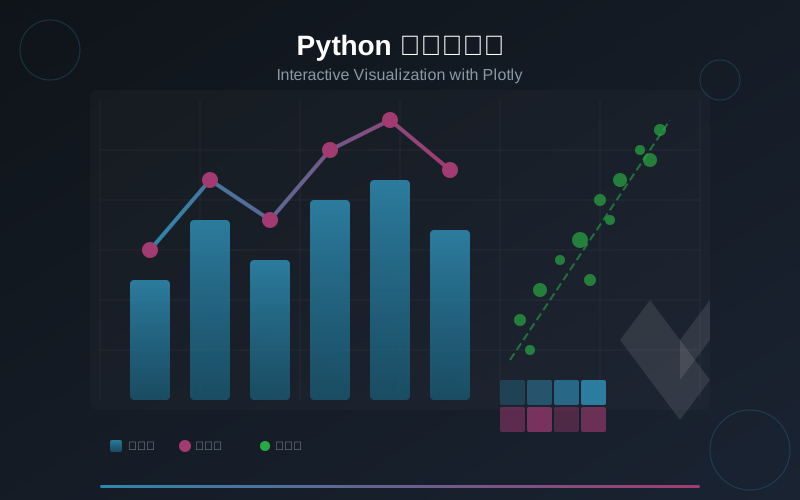
数据可视化是数据科学的核心技能之一,而 Plotly 凭借其强大的交互性和简洁的 API,已成为 Python 生态中最受欢迎的可视化库之一。本文将从基础入门到实战应用,系统讲解 Plotly 的核心图表类型、Dash 仪表盘构建,以及真实场景下的数据可视化最佳实践。## 一、Plotly 简介:为什么选择 Plotly? 在 Python 数据可视化领域,Matplotlib 是老牌基础库,Seaborn 专注统计图表,而 Plotly 则以**交互性**独树一帜。与静态图表不同,Plotly 生成的图表支持缩放、平移、悬停查看数据、图例筛选等交互操作,特别适合数据探索和展示。 Plotly 的核心优势: - **原生交互**:无需额外配置,所有图表自动支持交互 - **多语言支持**:Python、R、JavaScript 统一 API - **Dash 生态**:快速构建数据仪表盘和 Web 应用 - **导出灵活**:支持 HTML、PNG、PDF 等多种格式 安装 Plotly:
pip install plotly dash pandas numpy## 二、Plotly 基础:两种 API 风格 Plotly 提供两种 API 风格:`plotly.express`(高层 API,推荐入门)和 `plotly.graph_objects`(底层 API,更灵活)。 ### 2.1 Express API:快速上手
import plotly.express as px
import pandas as pd

# 示例数据
df = pd.DataFrame({
    '月份': ['1月', '2月', '3月', '4月', '5月', '6月'],
    '销售额': [120, 150, 180, 200, 170, 220],
    '成本': [80, 90, 100, 110, 95, 120]
})

# 一行代码生成折线图
fig = px.line(df, x='月份', y='销售额', title='月度销售趋势')
fig.show()
### 2.2 Graph Objects API:精细控制
import plotly.graph_objects as go

fig = go.Figure()
fig.add_trace(go.Scatter(
    x=df['月份'],
    y=df['销售额'],
    mode='lines+markers',
    name='销售额',
    line=dict(color='#1f77b4', width=3),
    marker=dict(size=10)
))
fig.update_layout(
    title='月度销售趋势(精细版)',
    xaxis_title='月份',
    yaxis_title='金额(万元)',
    template='plotly_white'
)
fig.show()
**经验法则**:日常探索用 Express,需要精细定制时切换到 Graph Objects。
## 三、核心图表类型实战
### 3.1 折线图:时间序列分析
折线图是展示趋势变化的首选,特别适合时间序列数据。
import plotly.express as px
import pandas as pd
import numpy as np

# 生成模拟股票数据
dates = pd.date_range('2024-01-01', periods=100)
prices = 100 + np.cumsum(np.random.randn(100) * 2)

df_stock = pd.DataFrame({'日期': dates, '股价': prices})

fig = px.line(df_stock, x='日期', y='股价', title='股票价格走势')
fig.update_traces(line=dict(color='#2ca02c', width=2))
fig.update_layout(
    hovermode='x unified',  # 悬停时显示所有数据
    xaxis_rangeslider_visible=True  # 添加范围选择器
)
fig.show()
**进阶技巧**:添加移动平均线
df_stock['MA7'] = df_stock['股价'].rolling(7).mean()
df_stock['MA30'] = df_stock['股价'].rolling(30).mean()

fig = go.Figure()
fig.add_trace(go.Scatter(x=df_stock['日期'], y=df_stock['股价'],
                         name='股价', line=dict(color='#1f77b4', width=1)))
fig.add_trace(go.Scatter(x=df_stock['日期'], y=df_stock['MA7'],
                         name='7日均线', line=dict(color='#ff7f0e', width=2)))
fig.add_trace(go.Scatter(x=df_stock['日期'], y=df_stock['MA30'],
                         name='30日均线', line=dict(color='#d62728', width=2)))
fig.show()
### 3.2 散点图:探索变量关系
散点图用于展示两个变量之间的关系,配合回归线可快速识别相关性。
# 鸢尾花数据集示例
df_iris = px.data.iris()

fig = px.scatter(
    df_iris,
    x='sepal_width',
    y='sepal_length',
    color='species',
    size='petal_length',
    hover_data=['petal_width'],
    title='鸢尾花特征分布',
    labels={'sepal_width': '萼片宽度', 'sepal_length': '萼片长度'}
)
fig.update_layout(legend_title_text='品种')
fig.show()
**进阶:添加回归趋势线**
fig = px.scatter(
    df_iris,
    x='sepal_width',
    y='sepal_length',
    trendline='ols',  # 添加线性回归线
    title='萼片宽度与长度的关系'
)
fig.show()
### 3.3 柱状图:分类数据对比
柱状图适合展示分类数据的分布和对比。
# 销售数据对比
categories = ['电子产品', '服装', '食品', '家居', '运动']
sales_2023 = [450, 320, 280, 200, 150]
sales_2024 = [520, 380, 310, 250, 200]

fig = go.Figure(data=[
    go.Bar(name='2023年', x=categories, y=sales_2023, marker_color='#1f77b4'),
    go.Bar(name='2024年', x=categories, y=sales_2024, marker_color='#ff7f0e')
])
fig.update_layout(
    barmode='group',
    title='年度销售对比',
    yaxis_title='销售额(万元)'
)
fig.show()
**堆叠柱状图**:展示部分与整体关系
fig.update_layout(barmode='stack', title='销售额构成')
fig.show()
### 3.4 热力图:矩阵数据可视化 热力图适合展示相关性矩阵、时间表等二维数据。
import numpy as np

# 相关性矩阵
corr_matrix = df_iris.select_dtypes(include=[np.number]).corr()

fig = px.imshow(
    corr_matrix,
    labels=dict(color='相关系数'),
    x=corr_matrix.columns,
    y=corr_matrix.columns,
    color_continuous_scale='RdBu_r',  # 红蓝配色
    title='鸢尾花数据特征相关性'
)
fig.update_xaxes(side='bottom')
fig.show()
**热力图进阶:添加数值标注**
fig = go.Figure(data=go.Heatmap(
    z=corr_matrix.values,
    x=corr_matrix.columns,
    y=corr_matrix.columns,
    colorscale='RdBu_r',
    text=[[f'{v:.2f}' for v in row] for row in corr_matrix.values],
    texttemplate='%{text}',
    textfont={'size': 12}
))
fig.show()
### 3.5 3D 图表:多维数据探索
3D 图表适合展示三维数据分布,但需注意视角选择避免遮挡。
# 3D 散点图
fig = px.scatter_3d(
    df_iris,
    x='sepal_length',
    y='sepal_width',
    z='petal_length',
    color='species',
    title='鸢尾花三维特征分布',
    opacity=0.8
)
fig.update_traces(marker=dict(size=5))
fig.show()
**3D 曲面图**
# 生成网格数据
x = np.linspace(-5, 5, 50)
y = np.linspace(-5, 5, 50)
X, Y = np.meshgrid(x, y)
Z = np.sin(np.sqrt(X**2 + Y**2))

fig = go.Figure(data=[go.Surface(z=Z, x=X, y=Y)])
fig.update_layout(
    title='3D 曲面图示例',
    scene=dict(
        xaxis_title='X 轴',
        yaxis_title='Y 轴',
        zaxis_title='Z 轴'
    )
)
fig.show()
## 四、Dash 构建交互式仪表盘
Dash 是 Plotly 官方推出的 Web 应用框架,用纯 Python 即可构建数据仪表盘。
### 4.1 Dash 基础结构
from dash import Dash, html, dcc, callback, Output, Input
import plotly.express as px
import pandas as pd

app = Dash(__name__)

# 布局定义
app.layout = html.Div([
    html.H1('销售数据仪表盘', style={'textAlign': 'center'}),

    dcc.Dropdown(
        id='category-dropdown',
        options=[
            {'label': '全部', 'value': 'all'},
            {'label': '电子产品', 'value': '电子'},
            {'label': '服装', 'value': '服装'}
        ],
        value='all'
    ),

    dcc.Graph(id='sales-chart'),
])

# 回调函数
@callback(
    Output('sales-chart', 'figure'),
    Input('category-dropdown', 'value')
)
def update_chart(selected_category):
    df = pd.DataFrame({
        '月份': ['1月', '2月', '3月', '4月', '5月'],
        '销售额': [120, 150, 180, 200, 170]
    })
    fig = px.bar(df, x='月份', y='销售额', title=f'销售数据 - {selected_category}')
    return fig

if __name__ == '__main__':
    app.run(debug=True)
### 4.2 多图表联动仪表盘
from dash import Dash, html, dcc, callback, Output, Input
import plotly.express as px
import pandas as pd

app = Dash(__name__)

df = px.data.gapminder()

app.layout = html.Div([
    html.H2('全球发展数据仪表盘', style={'textAlign': 'center'}),

    html.Div([
        dcc.Dropdown(
            id='continent-dropdown',
            options=[{'label': c, 'value': c} for c in df['continent'].unique()],
            value='Asia',
            style={'width': '200px'}
        ),
        dcc.Slider(
            id='year-slider',
            min=df['year'].min(),
            max=df['year'].max(),
            step=5,
            value=2007,
            marks={year: str(year) for year in df['year'].unique()[::5]}
        )
    ], style={'padding': '20px'}),

    html.Div([
        dcc.Graph(id='scatter-plot', style={'width': '50%', 'display': 'inline-block'}),
        dcc.Graph(id='bar-chart', style={'width': '50%', 'display': 'inline-block'})
    ])
])

@callback(
    [Output('scatter-plot', 'figure'), Output('bar-chart', 'figure')],
    [Input('continent-dropdown', 'value'), Input('year-slider', 'value')]
)
def update_charts(continent, year):
    filtered = df[(df['continent'] == continent) & (df['year'] == year)]

    scatter = px.scatter(
        filtered, x='gdpPercap', y='lifeExp', size='pop',
        hover_name='country', log_x=True,
        title=f'{continent} {year} 年 GDP 与预期寿命'
    )

    bar = px.bar(
        filtered.nlargest(10, 'pop'),
        x='country', y='pop',
        title='人口最多的10个国家'
    )

    return scatter, bar

if __name__ == '__main__':
    app.run(debug=True)
## 五、数据处理与可视化最佳实践
### 5.1 数据预处理流程
import pandas as pd
import plotly.express as px

# 1. 数据加载
df = pd.read_csv('sales_data.csv')

# 2. 数据清洗
df['date'] = pd.to_datetime(df['date'])  # 日期转换
df = df.dropna(subset=['sales'])  # 删除缺失值
df['sales'] = df['sales'].clip(lower=0)  # 异常值处理

# 3. 数据聚合
monthly_sales = df.groupby(df['date'].dt.to_period('M'))['sales'].sum()
monthly_sales.index = monthly_sales.index.astype(str)

# 4. 可视化
fig = px.line(
    x=monthly_sales.index,
    y=monthly_sales.values,
    title='月度销售趋势',
    markers=True
)
fig.update_xaxes(tickangle=45)
fig.show()
### 5.2 颜色与样式优化
# 自定义配色方案
color_palette = {
    'primary': '#2E86AB',
    'secondary': '#A23B72',
    'success': '#28A745',
    'warning': '#FFC107'
}

fig = px.bar(df, x='category', y='sales', color='region')
fig.update_layout(
    plot_bgcolor='white',  # 背景色
    font=dict(family='Arial', size=14),
    title_font=dict(size=24, color='#333'),
    legend=dict(
        orientation='h',
        yanchor='bottom',
        y=1.02,
        xanchor='right',
        x=1
    )
)
fig.update_xaxes(showgrid=False, linecolor='#ccc')
fig.update_yaxes(gridcolor='#f0f0f0')
### 5.3 性能优化技巧
处理大规模数据时,可视化性能可能成为瓶颈:
# 方法1:数据采样
df_sample = df.sample(n=10000, random_state=42)

# 方法2:数据聚合
df_agg = df.groupby('category').agg({'sales': 'sum', 'count': 'size'})

# 方法3:使用 WebGL 渲染(适用于大数据量散点图)
fig = px.scatter(df_sample, x='x', y='y')
fig.update_traces(marker=dict(opacity=0.5))
fig.update_layout(dragmode='pan')  # 优化拖动性能
## 六、实战案例:电商销售分析仪表盘
以下是一个完整的电商数据分析场景:
import pandas as pd
import numpy as np
import plotly.express as px
import plotly.graph_objects as go
from plotly.subplots import make_subplots

# 生成模拟数据
np.random.seed(42)
dates = pd.date_range('2024-01-01', '2024-12-31', freq='D')
n = len(dates)

df = pd.DataFrame({
    'date': dates,
    'revenue': np.random.normal(10000, 2000, n).cumsum(),
    'orders': np.random.poisson(50, n),
    'avg_order_value': np.random.normal(200, 30, n)
})

# 创建子图布局
fig = make_subplots(
    rows=2, cols=2,
    subplot_titles=('日收入趋势', '订单量分布', '客单价变化', '收入占比'),
    specs=[[{'type': 'scatter'}, {'type': 'histogram'}],
           [{'type': 'scatter'}, {'type': 'pie'}]]
)

# 图1:收入趋势
fig.add_trace(
    go.Scatter(x=df['date'], y=df['revenue'],
               mode='lines', name='收入',
               line=dict(color='#2E86AB')),
    row=1, col=1
)

# 图2:订单量分布
fig.add_trace(
    go.Histogram(x=df['orders'], name='订单量',
                 marker_color='#A23B72'),
    row=1, col=2
)

# 图3:客单价变化
fig.add_trace(
    go.Scatter(x=df['date'], y=df['avg_order_value'],
               mode='lines', name='客单价',
               line=dict(color='#28A745')),
    row=2, col=1
)

# 图4:月度收入占比
monthly_rev = df.groupby(df['date'].dt.month)['revenue'].sum()
fig.add_trace(
    go.Pie(labels=['1-3月', '4-6月', '7-9月', '10-12月'],
           values=[monthly_rev[:3].sum(), monthly_rev[3:6].sum(),
                   monthly_rev[6:9].sum(), monthly_rev[9:].sum()],
           name='季度收入'),
    row=2, col=2
)

fig.update_layout(
    height=800,
    title_text='电商销售综合分析',
    showlegend=False
)
fig.show()
## 七、总结
Plotly 以其强大的交互性和丰富的图表类型,成为数据科学家不可或缺的工具。掌握其核心 API(Express 和 Graph Objects),理解各类图表的适用场景,结合 Dash 构建仪表盘,能够有效提升数据分析和展示效率。
**关键要点回顾**:
1. **Express API 快速上手**,Graph Objects 精细控制,根据需求灵活选择
2. **图表类型选择**:折线图看趋势、散点图看关系、柱状图看对比、热力图看矩阵、3D图看多维
3. **Dash 仪表盘**:纯 Python 构建 Web 应用,回调机制实现交互联动
4. **数据预处理**:清洗、转换、聚合是可视化的前置关键步骤
5. **性能优化**:大数据量时采样、聚合、WebGL 渲染是有效手段
**进阶方向**:
- 学习 Plotly 动画功能,展示时间演变
- 探索 Plotly 与机器学习库(scikit-learn)的结合
- 深入 Dash 企业级应用开发(认证、数据库集成、部署)
数据可视化不仅是技术,更是讲故事的艺术。好的图表能让数据说话,让洞察显现。持续练习,在实践中积累经验,才能真正掌握这门技能。
本文链接:https://www.kkkliao.cn/?id=954 转载需授权!
版权声明:本文由廖万里的博客发布,如需转载请注明出处。