

.png) 手机流量卡
手机流量卡 免费领卡·号卡店铺
 关于本站
关于本站Three.js WebGL 3D 网页开发入门教程
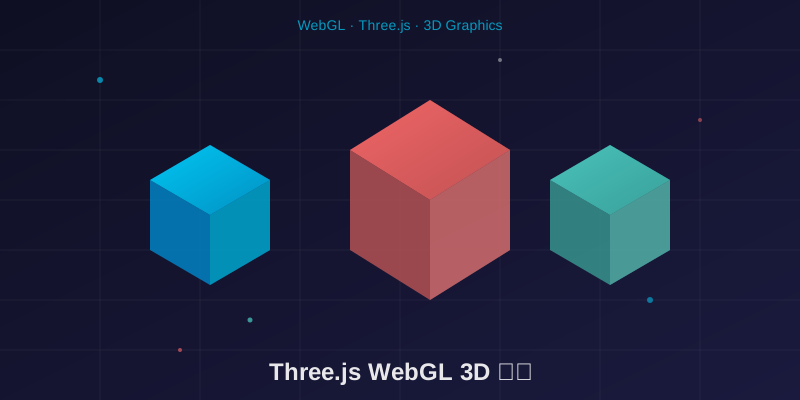
WebGL 让浏览器拥有了原生 3D 渲染能力,而 Three.js 则是通往这个世界的最佳门票。本文将从零开始,带你掌握 WebGL 基础、Three.js 核心概念、几何体与材质、光照系统、动画循环、交互控制,最终完成一个可交互的 3D 场景实战项目。
一、WebGL 基础:浏览器 3D 渲染的基石
WebGL(Web Graphics Library)是一种在浏览器中无需插件即可渲染 3D 图形的 JavaScript API。它基于 OpenGL ES 2.0,直接与 GPU 通信,实现硬件加速的图形渲染。
1.1 WebGL 的核心优势
传统网页渲染依赖 CPU,而 WebGL 将计算任务交给 GPU,性能提升数十倍。这意味着:
- 流畅的 3D 动画:每秒 60 帧以上的渲染性能
- 复杂的视觉效果:粒子系统、后处理、物理模拟
- 跨平台兼容:桌面、移动端、VR 设备统一支持
1.2 为什么需要 Three.js
原生 WebGL 编程极其繁琐——画一个三角形需要上百行着色器代码。Three.js 封装了底层细节,提供友好的 API,让你专注于创意而非底层实现。
// 原生 WebGL:画一个三角形需要这么多代码
const vertexShaderSource = `
    attribute vec4 aPosition;
    void main() {
        gl_Position = aPosition;
    }
`;
const fragmentShaderSource = `
    precision mediump float;
    void main() {
        gl_FragColor = vec4(1.0, 0.0, 0.0, 1.0);
    }
`;
// 还需要编译着色器、创建缓冲区、绑定属性...

// Three.js:三行代码搞定
const geometry = new THREE.Triangle();
const material = new THREE.MeshBasicMaterial({ color: 0xff0000 });
const mesh = new THREE.Mesh(geometry, material);
二、Three.js 核心概念:场景、相机、渲染器
Three.js 的三大支柱是场景(Scene)、相机(Camera)和渲染器(Renderer)。理解它们的协作关系,是掌握 Three.js 的第一步。
2.1 场景(Scene):3D 世界的容器
场景是所有 3D 对象的容器,包括几何体、灯光、相机等。你可以把它想象成一个虚拟的舞台。
// 创建场景
const scene = new THREE.Scene();

// 设置背景色
scene.background = new THREE.Color(0x1a1a2e);

// 添加雾效(增加深度感)
scene.fog = new THREE.Fog(0x1a1a2e, 10, 50);
2.2 相机(Camera):观察世界的眼睛
相机决定了我们从哪个角度、以什么视野观察场景。最常用的是透视相机(PerspectiveCamera),模拟人眼的视觉效果。
// 创建透视相机
const camera = new THREE.PerspectiveCamera(
    75,                                     // 视野角度(FOV)
    window.innerWidth / window.innerHeight, // 宽高比
    0.1,                                    // 近裁剪面
    1000                                    // 远裁剪面
);

// 设置相机位置
camera.position.set(0, 5, 10);

// 让相机看向原点
camera.lookAt(0, 0, 0);
透视相机的四个参数决定了成像效果:
- FOV:视野角度,越大看到越多,但物体会变小
- Aspect Ratio:宽高比,通常与画布一致
- Near Plane:近裁剪面,比这更近的物体不渲染
- Far Plane:远裁剪面,比这更远的物体不渲染
2.3 渲染器(Renderer):将 3D 绘制到 2D
渲染器负责将 3D 场景投影到 2D 画布上。WebGLRenderer 是最常用的渲染器。
// 创建渲染器
const renderer = new THREE.WebGLRenderer({
    antialias: true,    // 开启抗锯齿
    alpha: true         // 允许透明背景
});

// 设置渲染尺寸
renderer.setSize(window.innerWidth, window.innerHeight);

// 设置像素比(适配高分屏)
renderer.setPixelRatio(window.devicePixelRatio);

// 开启阴影
renderer.shadowMap.enabled = true;
renderer.shadowMap.type = THREE.PCFSoftShadowMap;

// 将画布添加到页面
document.body.appendChild(renderer.domElement);
三、几何体与材质:构建 3D 物体
每个 3D 物体由几何体(Geometry)和材质(Material)组成。几何体定义形状,材质定义外观。
3.1 内置几何体
Three.js 提供了丰富的内置几何体,满足大部分需求:
// 基础几何体
const box = new THREE.BoxGeometry(1, 1, 1);        // 立方体
const sphere = new THREE.SphereGeometry(0.5, 32, 32);  // 球体
const cylinder = new THREE.CylinderGeometry(0.5, 0.5, 1, 32); // 圆柱体
const cone = new THREE.ConeGeometry(0.5, 1, 32);  // 圆锥体
const torus = new THREE.TorusGeometry(0.5, 0.2, 16, 100); // 圆环

// 平面几何体
const plane = new THREE.PlaneGeometry(10, 10);    // 平面

// 自定义几何体(通过顶点)
const vertices = new Float32Array([
    0, 1, 0,    // 顶点 1
    -1, -1, 0,  // 顶点 2
    1, -1, 0    // 顶点 3
]);
const customGeometry = new THREE.BufferGeometry();
customGeometry.setAttribute('position', new THREE.BufferAttribute(vertices, 3));
3.2 材质系统
材质决定了物体如何与光照交互:
// 基础材质(不受光照影响)
const basicMaterial = new THREE.MeshBasicMaterial({
    color: 0x00ff00,
    wireframe: true  // 线框模式
});

// 标准材质(PBR 物理渲染)
const standardMaterial = new THREE.MeshStandardMaterial({
    color: 0xff6b6b,
    metalness: 0.5,    // 金属度
    roughness: 0.3,    // 粗糙度
    envMapIntensity: 1  // 环境贴图强度
});

// 物理材质(更真实的 PBR)
const physicalMaterial = new THREE.MeshPhysicalMaterial({
    color: 0x4ecdc4,
    metalness: 0.9,
    roughness: 0.1,
    clearcoat: 1.0,     // 清漆层
    clearcoatRoughness: 0.1
});

// Lambert 材质(漫反射)
const lambertMaterial = new THREE.MeshLambertMaterial({
    color: 0x00d4ff,
    emissive: 0x001122  // 自发光
});

// Phong 材质(镜面高光)
const phongMaterial = new THREE.MeshPhongMaterial({
    color: 0xffcc00,
    shininess: 100,     // 高光强度
    specular: 0xffffff  // 高光颜色
});
3.3 网格(Mesh):几何体 + 材质
网格是将几何体和材质组合后的可渲染对象:
// 创建网格
const geometry = new THREE.BoxGeometry(2, 2, 2);
const material = new THREE.MeshStandardMaterial({ color: 0x00d4ff });
const cube = new THREE.Mesh(geometry, material);

// 设置位置、旋转、缩放
cube.position.set(0, 1, 0);
cube.rotation.y = Math.PI / 4;
cube.scale.set(1, 1, 1);

// 开启阴影
cube.castShadow = true;      // 投射阴影
cube.receiveShadow = true;   // 接收阴影

// 添加到场景
scene.add(cube);
四、光照系统:让场景生动起来
没有光照,3D 场景就是一片黑暗。Three.js 提供多种光源类型,模拟真实世界的光照效果。
4.1 光源类型
// 环境光(均匀照亮所有物体)
const ambientLight = new THREE.AmbientLight(0x404040, 0.5);
scene.add(ambientLight);

// 平行光(模拟太阳光)
const directionalLight = new THREE.DirectionalLight(0xffffff, 1);
directionalLight.position.set(5, 10, 7);
directionalLight.castShadow = true;  // 开启阴影
directionalLight.shadow.mapSize.width = 2048;
directionalLight.shadow.mapSize.height = 2048;
scene.add(directionalLight);

// 点光源(像灯泡)
const pointLight = new THREE.PointLight(0xff6b6b, 1, 100);
pointLight.position.set(0, 5, 0);
scene.add(pointLight);

// 聚光灯(像手电筒)
const spotLight = new THREE.SpotLight(0xffffff, 1);
spotLight.position.set(0, 10, 0);
spotLight.angle = Math.PI / 6;        // 光锥角度
spotLight.penumbra = 0.5;             // 边缘柔和度
spotLight.castShadow = true;
scene.add(spotLight);

// 半球光(天空光 + 地面反射)
const hemisphereLight = new THREE.HemisphereLight(
    0x87ceeb,  // 天空颜色
    0x8b4513,  // 地面颜色
    0.6
);
scene.add(hemisphereLight);
4.2 阴影设置
真实的阴影能极大提升场景真实感:
// 渲染器开启阴影
renderer.shadowMap.enabled = true;
renderer.shadowMap.type = THREE.PCFSoftShadowMap;

// 光源投射阴影
directionalLight.castShadow = true;
directionalLight.shadow.camera.near = 0.1;
directionalLight.shadow.camera.far = 50;
directionalLight.shadow.camera.left = -10;
directionalLight.shadow.camera.right = 10;
directionalLight.shadow.camera.top = 10;
directionalLight.shadow.camera.bottom = -10;

// 物体投射和接收阴影
cube.castShadow = true;
ground.receiveShadow = true;
五、动画循环:让世界动起来
动画的本质是每帧更新物体状态,然后重新渲染。Three.js 使用 requestAnimationFrame 实现流畅的动画循环。
5.1 基础动画循环
// 动画循环函数
function animate() {
    // 请求下一帧
    requestAnimationFrame(animate);

    // 更新物体状态
    cube.rotation.x += 0.01;
    cube.rotation.y += 0.01;

    // 渲染场景
    renderer.render(scene, camera);
}

// 启动动画
animate();
5.2 使用 Clock 实现时间动画
const clock = new THREE.Clock();

function animate() {
    requestAnimationFrame(animate);

    // 获取经过的时间
    const elapsedTime = clock.getElapsedTime();

    // 使用时间驱动动画
    cube.position.y = Math.sin(elapsedTime) * 2;
    cube.rotation.y = elapsedTime * 0.5;

    renderer.render(scene, camera);
}
5.3 高级动画:GSAP 和 Tween
对于复杂的动画,可以使用 GSAP 或 Tween.js:
// 使用 GSAP
import gsap from 'gsap';

gsap.to(cube.position, {
    duration: 2,
    x: 5,
    y: 3,
    ease: 'power2.inOut',
    repeat: -1,      // 无限循环
    yoyo: true       // 来回播放
});

gsap.to(cube.rotation, {
    duration: 4,
    y: Math.PI * 2,
    ease: 'none',
    repeat: -1
});
六、交互控制:与 3D 世界互动
用户交互是现代 3D 应用的核心。Three.js 提供了多种控制器和射线检测功能。
6.1 轨道控制器(OrbitControls)
轨道控制器让用户可以旋转、缩放、平移场景:
import { OrbitControls } from 'three/examples/jsm/controls/OrbitControls.js';

// 创建轨道控制器
const controls = new OrbitControls(camera, renderer.domElement);

// 配置
controls.enableDamping = true;        // 开启阻尼效果
controls.dampingFactor = 0.05;        // 阻尼系数
controls.minDistance = 2;             // 最小缩放距离
controls.maxDistance = 50;            // 最大缩放距离
controls.maxPolarAngle = Math.PI / 2; // 限制垂直旋转角度

// 在动画循环中更新
function animate() {
    requestAnimationFrame(animate);
    controls.update();  // 更新控制器
    renderer.render(scene, camera);
}
6.2 射线检测(Raycaster)
射线检测用于判断鼠标是否点击了 3D 物体:
const raycaster = new THREE.Raycaster();
const mouse = new THREE.Vector2();

// 监听鼠标点击
window.addEventListener('click', (event) => {
    // 将鼠标坐标转换为归一化设备坐标(-1 到 1)
    mouse.x = (event.clientX / window.innerWidth) * 2 - 1;
    mouse.y = -(event.clientY / window.innerHeight) * 2 + 1;

    // 从相机发射射线
    raycaster.setFromCamera(mouse, camera);

    // 检测与物体的交叉
    const intersects = raycaster.intersectObjects(scene.children);

    if (intersects.length > 0) {
        const clickedObject = intersects[0].object;
        // 改变点击物体的颜色
        clickedObject.material.color.setHex(Math.random() * 0xffffff);
    }
});
6.3 鼠标悬停效果
let hoveredObject = null;

window.addEventListener('mousemove', (event) => {
    mouse.x = (event.clientX / window.innerWidth) * 2 - 1;
    mouse.y = -(event.clientY / window.innerHeight) * 2 + 1;

    raycaster.setFromCamera(mouse, camera);
    const intersects = raycaster.intersectObjects(scene.children);

    // 重置之前悬停物体
    if (hoveredObject) {
        hoveredObject.material.emissive.setHex(0x000000);
    }

    if (intersects.length > 0) {
        hoveredObject = intersects[0].object;
        hoveredObject.material.emissive.setHex(0x333333);
        document.body.style.cursor = 'pointer';
    } else {
        hoveredObject = null;
        document.body.style.cursor = 'default';
    }
});
七、实战案例:交互式 3D 展示场景
现在我们将前面学到的知识整合,创建一个完整的交互式 3D 场景:
import * as THREE from 'three';
import { OrbitControls } from 'three/examples/jsm/controls/OrbitControls.js';

// === 1. 初始化场景、相机、渲染器 ===
const scene = new THREE.Scene();
scene.background = new THREE.Color(0x1a1a2e);

const camera = new THREE.PerspectiveCamera(
    75,
    window.innerWidth / window.innerHeight,
    0.1,
    1000
);
camera.position.set(0, 5, 10);

const renderer = new THREE.WebGLRenderer({ antialias: true });
renderer.setSize(window.innerWidth, window.innerHeight);
renderer.setPixelRatio(window.devicePixelRatio);
renderer.shadowMap.enabled = true;
renderer.shadowMap.type = THREE.PCFSoftShadowMap;
document.body.appendChild(renderer.domElement);

// === 2. 添加光源 ===
const ambientLight = new THREE.AmbientLight(0x404040, 0.5);
scene.add(ambientLight);

const directionalLight = new THREE.DirectionalLight(0xffffff, 1);
directionalLight.position.set(5, 10, 5);
directionalLight.castShadow = true;
directionalLight.shadow.mapSize.width = 2048;
directionalLight.shadow.mapSize.height = 2048;
scene.add(directionalLight);

const pointLight = new THREE.PointLight(0x00d4ff, 0.5);
pointLight.position.set(-5, 3, 0);
scene.add(pointLight);

// === 3. 创建地面 ===
const groundGeometry = new THREE.PlaneGeometry(20, 20);
const groundMaterial = new THREE.MeshStandardMaterial({
    color: 0x2d2d44,
    roughness: 0.8
});
const ground = new THREE.Mesh(groundGeometry, groundMaterial);
ground.rotation.x = -Math.PI / 2;
ground.receiveShadow = true;
scene.add(ground);

// === 4. 创建多个几何体 ===
const geometries = [
    new THREE.BoxGeometry(1.5, 1.5, 1.5),
    new THREE.SphereGeometry(0.8, 32, 32),
    new THREE.ConeGeometry(0.8, 1.5, 32),
    new THREE.TorusGeometry(0.6, 0.25, 16, 100)
];

const materials = [
    new THREE.MeshStandardMaterial({ color: 0x00d4ff, metalness: 0.3, roughness: 0.4 }),
    new THREE.MeshStandardMaterial({ color: 0xff6b6b, metalness: 0.5, roughness: 0.3 }),
    new THREE.MeshStandardMaterial({ color: 0x4ecdc4, metalness: 0.7, roughness: 0.2 }),
    new THREE.MeshStandardMaterial({ color: 0xffcc00, metalness: 0.4, roughness: 0.5 })
];

const meshes = [];
const positions = [
    [-4, 0.75, 0],
    [-1.3, 0.8, 0],
    [1.3, 1, 0],
    [4, 0.85, 0]
];

geometries.forEach((geometry, i) => {
    const mesh = new THREE.Mesh(geometry, materials[i]);
    mesh.position.set(...positions[i]);
    mesh.castShadow = true;
    mesh.receiveShadow = true;
    meshes.push(mesh);
    scene.add(mesh);
});

// === 5. 添加轨道控制器 ===
const controls = new OrbitControls(camera, renderer.domElement);
controls.enableDamping = true;
controls.dampingFactor = 0.05;
controls.minDistance = 3;
controls.maxDistance = 30;
controls.maxPolarAngle = Math.PI / 2 - 0.1;

// === 6. 射线检测交互 ===
const raycaster = new THREE.Raycaster();
const mouse = new THREE.Vector2();
let selectedMesh = null;

window.addEventListener('click', (event) => {
    mouse.x = (event.clientX / window.innerWidth) * 2 - 1;
    mouse.y = -(event.clientY / window.innerHeight) * 2 + 1;

    raycaster.setFromCamera(mouse, camera);
    const intersects = raycaster.intersectObjects(meshes);

    if (intersects.length > 0) {
        if (selectedMesh) {
            selectedMesh.material.emissive.setHex(0x000000);
        }
        selectedMesh = intersects[0].object;
        selectedMesh.material.emissive.setHex(0x222222);
    }
});

// === 7. 动画循环 ===
const clock = new THREE.Clock();

function animate() {
    requestAnimationFrame(animate);

    const time = clock.getElapsedTime();

    // 物体浮动动画
    meshes.forEach((mesh, i) => {
        mesh.position.y = positions[i][1] + Math.sin(time + i) * 0.2;
        mesh.rotation.y = time * 0.5 + i;
    });

    // 点光源环绕
    pointLight.position.x = Math.sin(time) * 5;
    pointLight.position.z = Math.cos(time) * 5;

    controls.update();
    renderer.render(scene, camera);
}

animate();

// === 8. 窗口大小自适应 ===
window.addEventListener('resize', () => {
    camera.aspect = window.innerWidth / window.innerHeight;
    camera.updateProjectionMatrix();
    renderer.setSize(window.innerWidth, window.innerHeight);
});
八、总结
本文从 WebGL 基础出发,系统讲解了 Three.js 的核心概念和实战技能:
- WebGL 基础:理解 GPU 渲染原理,认识 Three.js 的封装价值
- 三大核心:场景是容器,相机是眼睛,渲染器是画笔
- 几何体与材质:内置几何体快速建模,材质系统实现真实质感
- 光照系统:多种光源类型,阴影让场景更真实
- 动画循环:requestAnimationFrame 驱动,时间函数控制节奏
- 交互控制:轨道控制器实现视角操控,射线检测实现点击交互
Three.js 的学习曲线相对平缓,但要精通需要大量实践。建议从简单几何体开始,逐步添加材质、光照、动画,最后实现复杂交互。官方文档和示例是最好的学习资源。
下一步可以探索:后处理效果(Bloom、SSAO)、物理引擎(Cannon.js)、粒子系统、GLTF 模型加载等进阶话题。3D 世界的大门已经打开,尽情创造吧!
本文链接:https://www.kkkliao.cn/?id=955 转载需授权!
版权声明:本文由廖万里的博客发布,如需转载请注明出处。